 QRThali
The right screen for every job.
One app for the kitchen and the floor. It looks at who has signed in and shows only what that person needs: orders to cook, tables to serve, or payments to confirm.
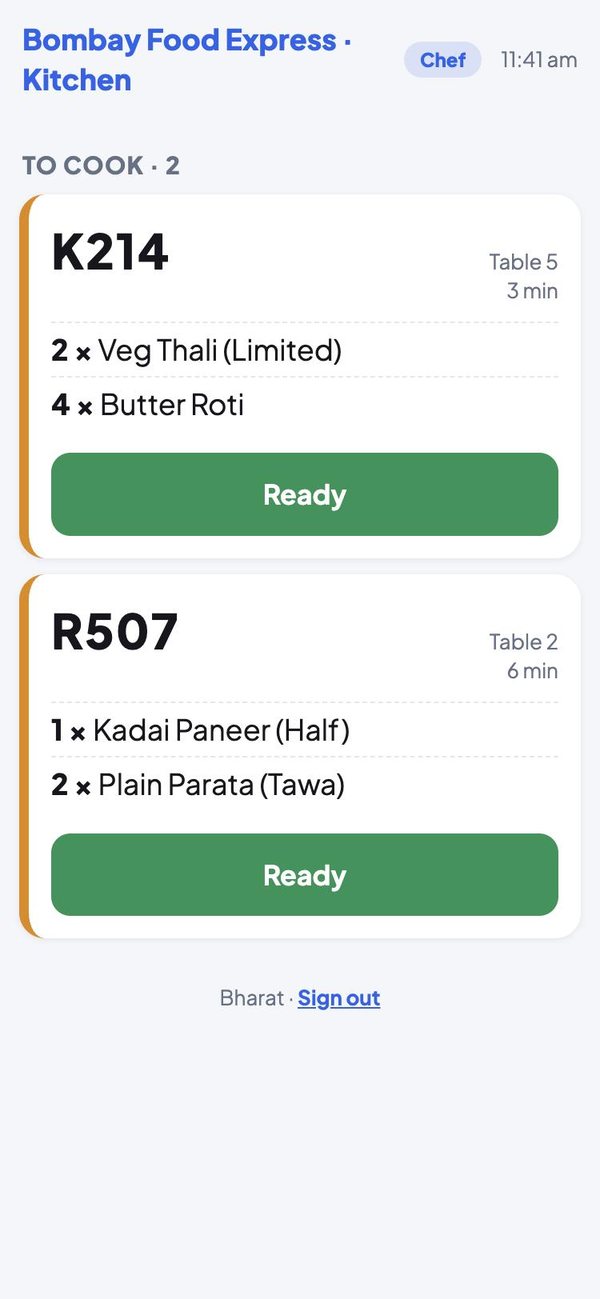
For the chef: what to cook
Big, clear cards, readable from across the kitchen.
- Order code, table number and waiting time
- Every dish with its quantity
- One tap when the order is ready
- New orders appear by themselves
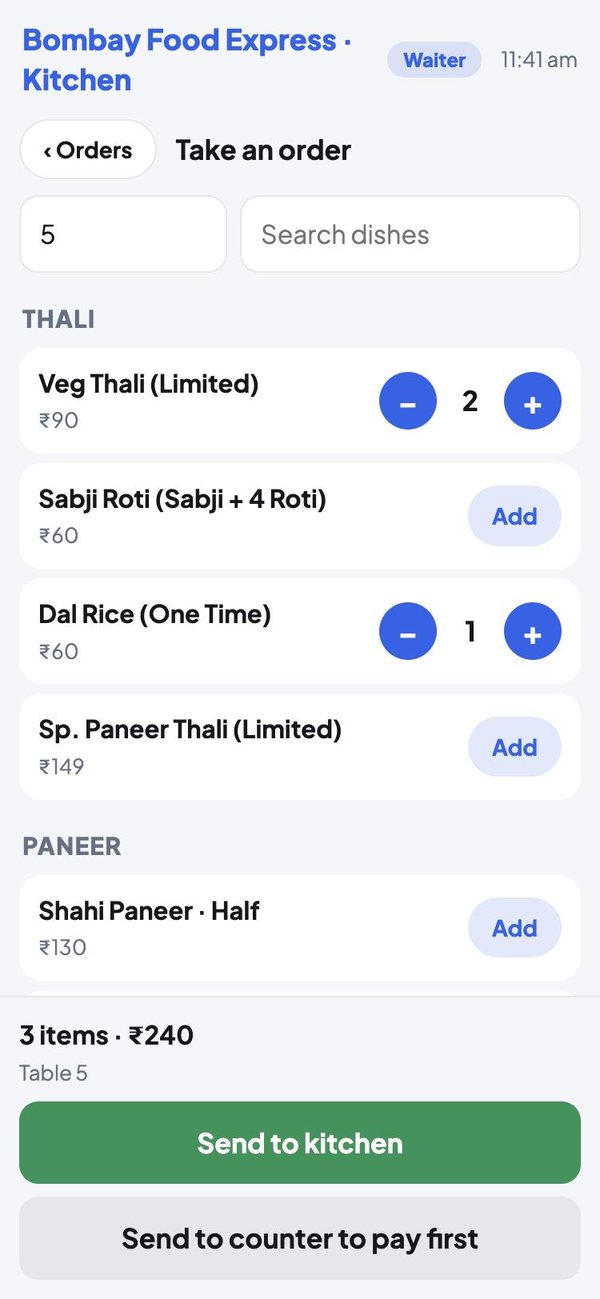
For the waiter: take the order at the table
Enter the table number, tap the dishes, and send.
- The restaurant's own menu, with sizes and prices
- Search by dish name
- Send straight to the kitchen, or to the counter to be paid first
- See what is cooking and what is ready to serve
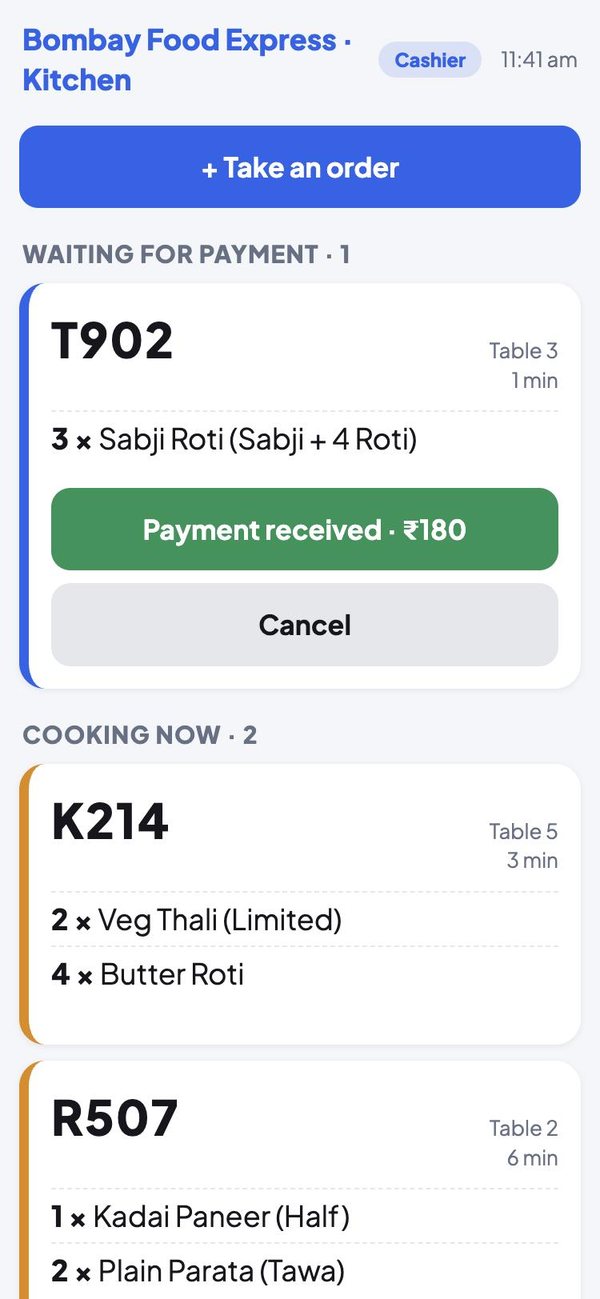
For the cashier and receptionist: the counter
Orders waiting for payment come first.
- Confirm a payment and the kitchen starts
- Cancel an order that will not be paid
- Take an order for a walk-in customer
- Hand over orders that are ready
These are screenshots of the app itself, shown with sample orders and names.
What each person sees
The job you enter for a person in the Partner app decides their screen. Change the job and the screen changes with it.
Chef or cook
Sees the orders to cook and marks each one ready. Nothing about payments.
Waiter
Takes orders at the table, sees what is cooking, and marks ready orders served.
Cashier or receptionist
Confirms payments, takes orders for walk-ins, and hands over ready orders.
Owner or manager
Sees everything: payments, cooking, serving and order taking.
Three steps
Add the person
In the Partner app, add each team member with their Gmail and job.
They sign in
They open the kitchen link and sign in with that Gmail.
The app fits the job
A chef, a waiter and a cashier each get their own screen.
Each person gets their own
Put your restaurant on QRThali today
Register, add your dishes and print the QR codes for your tables.